
Installing Leadbehavior via Google Tag Manager Template
This guide walks you through adding the Leadbehavior template to your Google Tag Manager container and configuring it to score your leads.
Prerequisites
Before you begin, make sure you have:
- A Google Tag Manager account with an existing container
- A Leadbehavior account with:
- Your Account ID (found at https://app.leadbehavior.com/account)
- Your Lead ID (found at https://app.leadbehavior.com/leads)
Step 1: Add the Template to Your Container
Open Google Tag Manager and select your container
Navigate to Templates
- In the left sidebar, click Templates
Search the Community Template Gallery
- In the "Tag Templates" section, click Search Gallery
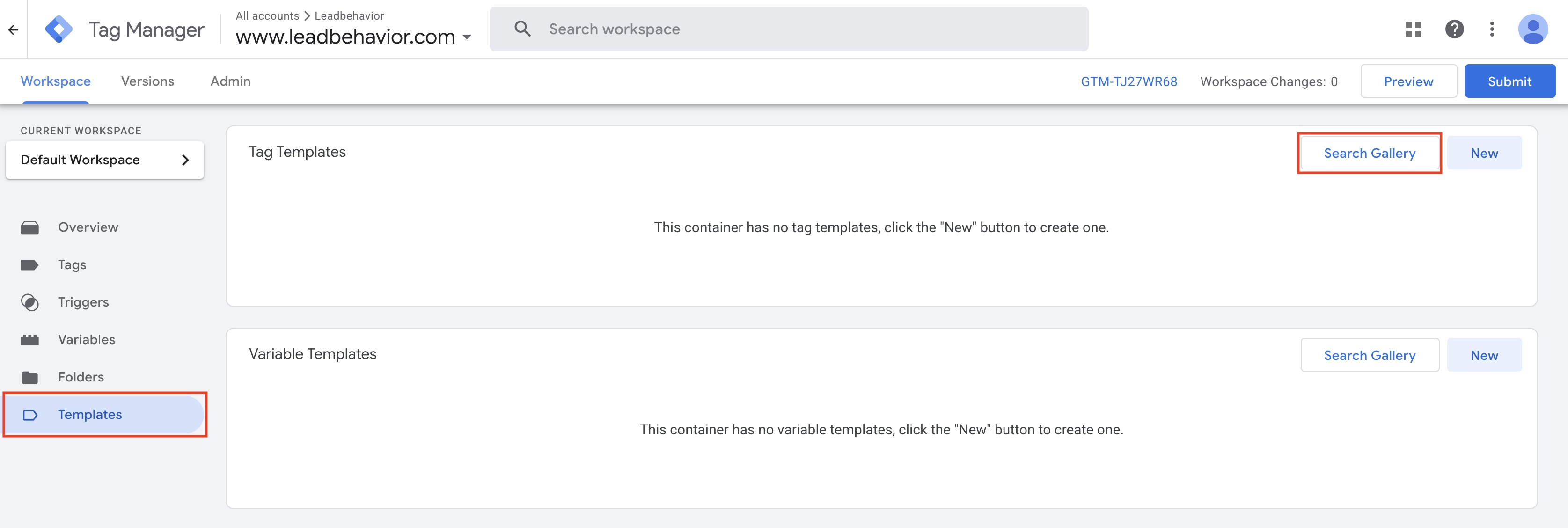
- Search for "Leadbehavior"
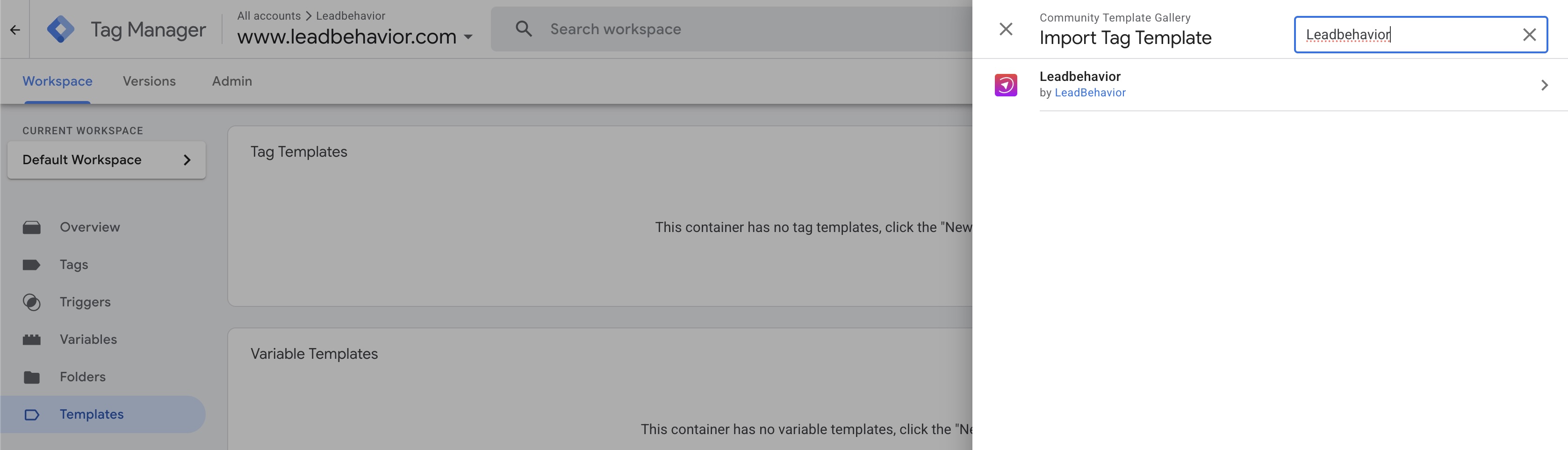
- Or use the direct link: Leadbehavior GTM Template
- In the "Tag Templates" section, click Search Gallery
Add the Template
- Click on the Leadbehavior template
- Click Add to workspace
- Confirm by clicking Add
Step 2: Create a New Tag Using the Template
Go to Tags
- In the left sidebar, click Tags
- Click New to create a new tag
Select the Leadbehavior Template
- Click on Tag Configuration
- Under "Custom" templates, select Leadbehavior
Configure the Tag
Fill in the required fields:
Field Description Where to Find It Account ID Your unique Leadbehavior account identifier Leads Dashboard Lead ID The ID of the lead you're scoring Leads Dashboard Order ID A unique identifier for each submission Google Ads requires an Order ID to match on. We understand that many conversion actions on a site do not warrant an Order ID. However, since one is required for Google Ads we must generate on and send it to both the Google Ads Conversion and Leadbehavior tags. Order ID
The Order ID should be a unique value for each form submission. The Google Tag Manager variable, Random Number is not sufficient because the random number is evaluated every time it is used. Consider using a cookie or local storage value that persists for the user's session.
Step 3: Set Up a Trigger
Click on Triggering
- Below the tag configuration, click Triggering
Choose When to Fire
Common trigger options:
- Form Submission – Fire when a specific form is submitted
- Page View – Fire on specific thank-you or confirmation pages
- Custom Event – Fire on a custom dataLayer event
Important
Make sure the trigger fires after the lead data is available in your dataLayer or form variables.
Step 4: Test and Publish
Preview Mode
- Click Preview in the top right corner of GTM
- Enter your website URL
- Navigate to a page where the tag should fire
- Verify the tag fires correctly in the Tag Assistant panel
- Check for success/failure messages in the console
Publish
Once you've verified everything works correctly:
- Click Submit in the top right
- Add a version name (e.g., "Added Leadbehavior integration")
- Click Publish
Troubleshooting
Tag Not Firing
- Verify your trigger conditions are met
- Check that the trigger is attached to the tag
- Use Preview mode to debug
Score Not Returning
- Verify your Account ID is correct
- Check that the Lead ID exists in your Leadbehavior account
- Review console logs for error messages